Build Smarter GTM Pipelines with Sixtyfour's MCP Integration

John P. Vajda
News
Use Sixtyfour from Your IDE with MCP
Stop context-switching to look up company data. Here's how to use Sixtyfour directly into Cursor, Claude Code, or VS Code in under five minutes.
If you've been building GTM tooling, enrichment pipelines, or lead-scoring systems, you've probably spent more time than you'd like toggling between your workflow editor, the Sixtyfour docs, and API cURLs. Now Sixtyfour provides two MCP servers — one for documentation and one for full company filter searches.
What is MCP?
MCP (Model Context Protocol) is an open standard that lets AI-powered IDEs call external tools more quickly. Instead of the AI guessing at an API's structure and behavior it can use an MCP server for context.
Think of it like this: your IDE's AI is the orchestrator, and MCP servers are the workers it can dispatch. You describe what you want in plain language; the AI figures out which tool to call, with what arguments, and returns the result inline.
For developers, this means:
No copy-pasting API docs into a chat window
No leaving the editor to run an API call manually
No guessing from the AI which can lead to it using incorrect API endpoints, options, parameters or fields.
Sixtyfour's MCP Servers
Documentation MCP — https://docs.sixtyfour.ai/mcp
Gives your IDE AI access to Sixtyfour docs, API references, and code examples.
Company Filter Search MCP — https://mcp.sixtyfour.ai/mcp?api_key=YOUR_API_KEY
Runs live company searches — filter by size, geography, industry, and more.
Setup: Three Steps
1. Add the servers to your MCP config
For Cursor (.cursor/mcp.json) and VS Code (.vscode/mcp.json):
For Claude Code, run these two commands from your project directory:
NOTE: These commands are scoped to the directory you run them from. To make the servers available across all projects, add --scope user to each command.
For Windsurf, add the JSON block above to ~/.codeium/windsurf/mcp_config.json.
2. Replace YOUR_API_KEY
To use the Company Search MCP be sure to provide your Sixtyfour API key.
3. Restart your IDE
That's it. Now both servers are live and ready for your AI!
Examples
Ask your IDE questions about the Sixtyfour API
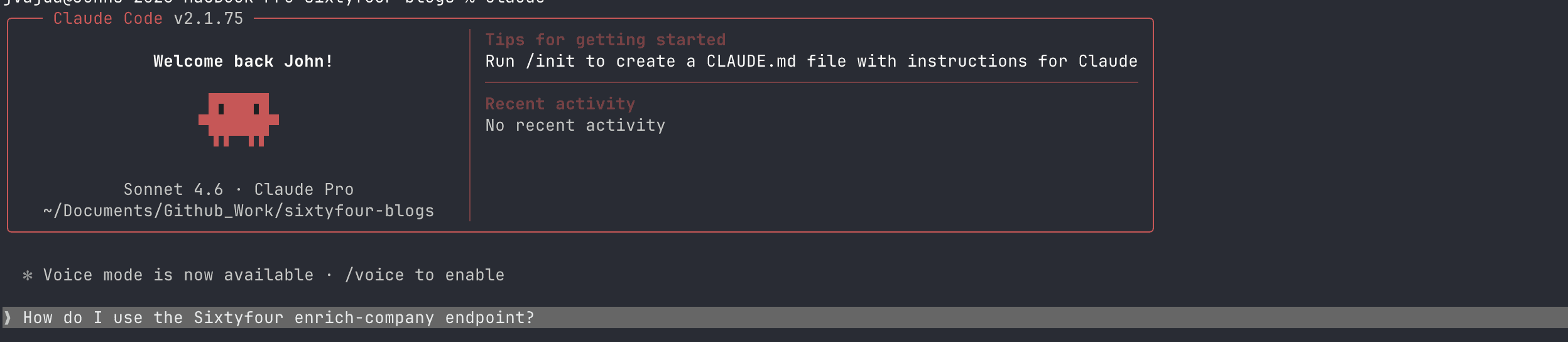
The documentation MCP gives your AI assistant direct access to Sixtyfour's full docs reference — endpoints, parameters, code examples, and guides. Instead of searching the docs site, just ask:
"How do I use the enrich-company endpoint?"
"What parameters does find-email accept?"
"Show me an example of using webhooks with Sixtyfour AI."
Your editor will pull the exact answer from live documentation rather than guessing from training data.
Run real company searches without writing a single API call
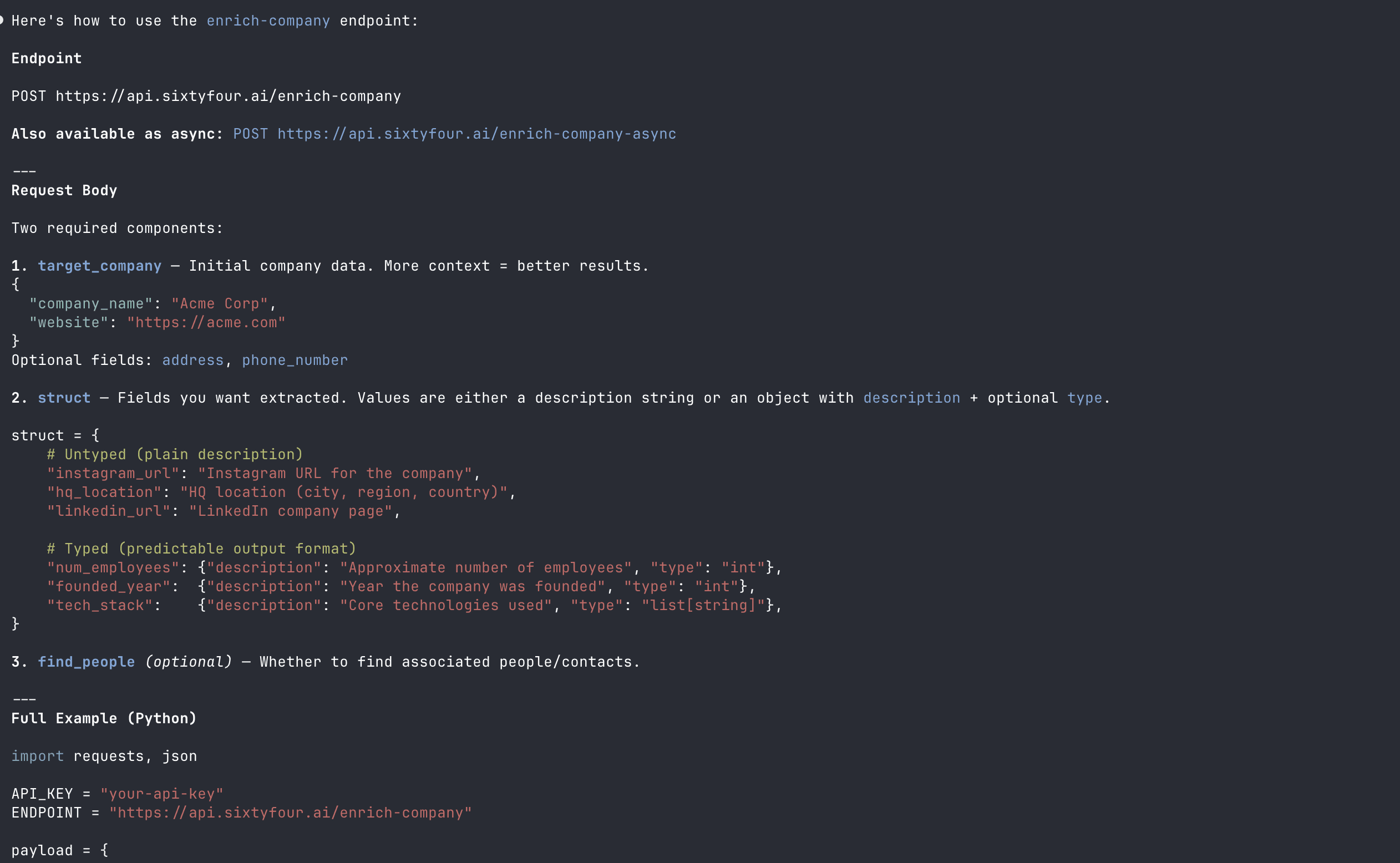
The Company Filter Search MCP is where things get genuinely useful for engineering workflows. You can drive the full search flow — discover available fields, inspect top values, build paginated queries — in plain language.
Find companies by size and location:
"Use Sixtyfour company filter search to find US companies with 100 to 5000 employees."
Explore what values a field contains before writing a filter:
"Use Sixtyfour company filter search to show the top values for `industry` for private Canadian companies."
Generate a filter payload you can drop into your codebase:
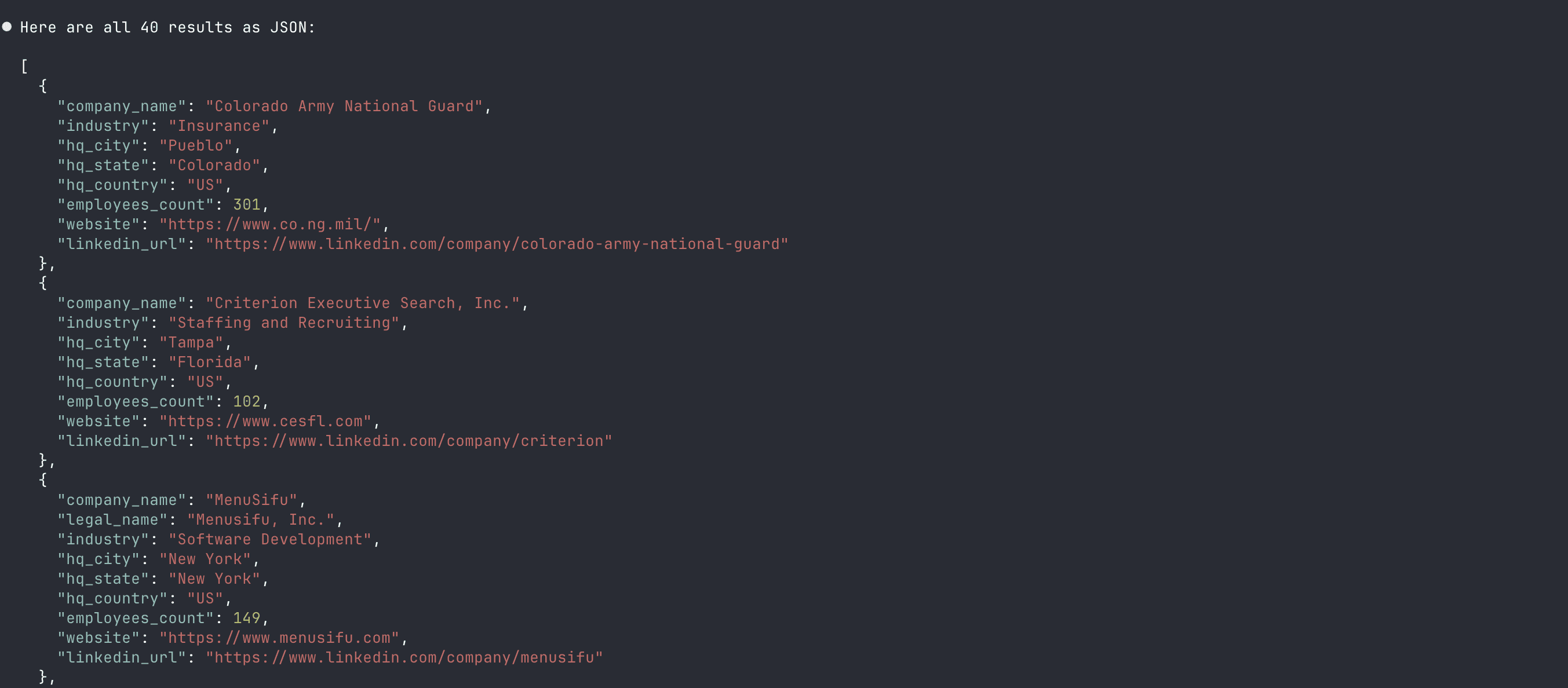
"Use Sixtyfour company filter search to build a `simple_filters` query for AI infrastructure companies and return the first page of results."
For that last one, ask your IDE to return the raw JSON payload — useful when you want to hardcode a filter into a pipeline or script it programmatically.
You get the query back as a structured object, ready to copy into your code.
Why This Matters for GTM Engineering
If you're building lead enrichment, ICP scoring, or account discovery tooling, the typical workflow looks like:
Open the docs to figure out what filters exist
Try a query with cURL
Adjust parameters, run again
Copy the result into your editor
Write the actual code
With MCP, steps 1–4 collapse into a single prompt in your editor. You explore the data model, validate the filter logic, and get back structured output — all without leaving the file you're working in.
The docs MCP handles the "what does this endpoint do" questions. The Company Filter Search MCP handles the "does this filter actually return what I think it does" questions. Together, they cover the two main reasons developers switch context while building against Sixtyfour's API.
What's Next
Once you have the servers running, a few things worth trying:
Chain a search into enrichment: find a set of companies with the filter search MCP, then pass those domains into the enrich-company endpoint directly from your IDE
Validate filter logic before committing it: run exploratory queries in natural language, inspect top values, then lock in the filter JSON once it looks right
Onboard teammates faster: anyone on your team with an MCP-compatible editor can now query Sixtyfour without learning the full API surface first
References
Sign up for Sixtyfour today!
If you don't have account, sign up today and get $50 in free credits to to try us out!